
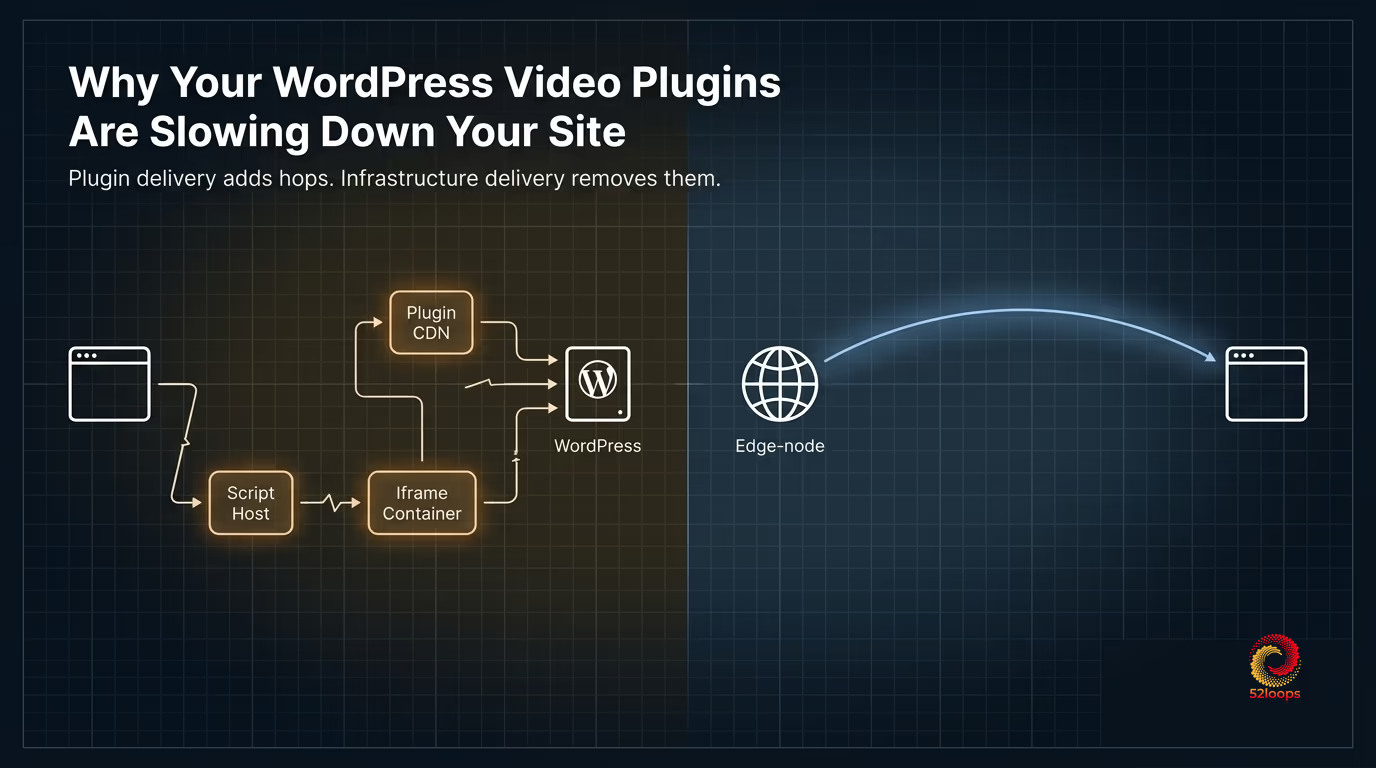
WordPress video plugins slow down your site because they inject render-blocking JavaScript, third-party DNS lookups, and iframe-based delivery layers that directly inflate Core Web Vitals metrics. The performance cost is baked into their architecture, not fixable with caching plugins or CDN tuning on top.
At a Glance: The Performance Cost
- 1 to 3 seconds added to LCP (Largest Contentful Paint, Google’s Core Web Vital measuring time until the largest visible element renders)
- 80 KB+ of render-blocking JavaScript loaded on every page, even pages with no video
- 3+ additional third-party DNS lookups per video, each adding 20 to 120 ms on cold connections
- 22 distinct third-party hosts the median mobile page calls (HTTP Archive 2024), and every video plugin adds to that count
These costs are not about a poorly coded plugin. They are structural. Every plugin that handles video delivery adds the same kind of overhead because it has to.
You ran your WordPress site through Google Lighthouse. The performance score came back at 54. The waterfall chart shows a thick block of render-blocked resources at the top. You scroll down to find the cause.
It is your video plugin.
This is not unusual. Google’s LCP optimization guide identifies video and image elements as the most common Largest Contentful Paint element on any page where they appear above the fold. When LCP fails, it fails hard: a score above 4 seconds places a page in the “Poor” category, which affects both user experience and Google Search ranking.
The instinct is to add a caching plugin, enable lazy loading, or switch to a “lightweight” WordPress theme. None of those fix the real problem. The cause is the video plugin itself, and the performance overhead is baked into its architecture.
This guide explains exactly what WordPress video plugins do to your page, why the overhead is structural, and what a genuine fix looks like.
What WordPress Video Plugins Actually Do to Your Site Performance
When you install a video plugin on WordPress, whether it is VideoPress, Presto Player, FV Player, or any of a dozen others, you are not just adding a player. You are adding a delivery stack.
WordPress video plugins fall into three categories, and each one carries delivery overhead the WordPress plugin review page will not mention.
Self-hosted upload plugins accept video uploads directly to your server or to the plugin vendor’s storage. When a visitor loads your page, the plugin registers its own JavaScript assets, injects a player iframe or container element, and makes delivery requests to a third-party CDN that the plugin controls.
Platform embed plugins wrap embeds from services like Vimeo, Wistia, or YouTube in a WordPress interface. The plugin provides a settings screen and a shortcode. The actual delivery still happens through the third party. The plugin itself adds another asset layer on top.
HLS stream plugins accept a video URL and mount a JavaScript player that handles adaptive bitrate streaming. These are closest to infrastructure, but they still typically bundle their own player scripts, which your page must load before the video can initialize.
Each category adds assets to your page. Those assets have a measurable cost in page load time.
The Four Performance Costs
Render-Blocking JavaScript
WordPress video plugins register JavaScript on every page that loads the plugin, not just pages with videos. Even if a page has no video on it, the plugin’s scripts are often enqueued globally.
A render-blocking resource is any file (script, stylesheet, or font) that the browser must download, parse, and execute before it can continue rendering the page. Render-blocking scripts prevent the browser from constructing the DOM until the script has completed. A plugin that registers 80 KB of unminified JavaScript with no defer or async attribute is blocking your entire page load until that script completes.
Chrome’s Lighthouse documentation on render-blocking resources lists these as one of the most common causes of slow Time to Interactive scores. A video player script that loads synchronously in the <head> of your document delays every visible element below it.
The fix sounds simple: add async or defer. But it is not always the plugin developer’s job to do that, and many plugins cannot be deferred without breaking the player initialization sequence. The player script often depends on DOM readiness in a way that makes deferred loading non-trivial to implement correctly.
Third-Party DNS Resolution
Before the first byte of video data can transfer, the browser must resolve DNS for every third-party domain the plugin calls. A cold DNS lookup adds 20 to 120 milliseconds. On a fast desktop connection, that is manageable. On a mobile connection, it stacks on top of connection setup time, TLS negotiation, and initial request latency.
Now consider that a single plugin often calls multiple origins: the CDN for video delivery, a separate API endpoint, and an analytics domain. Three separate DNS lookups, three TCP handshakes, three TLS negotiations. According to the HTTP Archive Web Almanac 2024, the median page on mobile loads resources from 22 distinct third-party hosts. Each video plugin you install adds to that count. You cannot preconnect to these origins in advance because the plugin controls what it calls, and that list can change with any plugin update.
Iframe Delivery Overhead
Many video plugins deliver the player inside an HTML <iframe>. The iframe is a separate browsing context. The browser must:
- Parse the iframe element in the parent document
- Start a new document load for the iframe source URL
- Download the iframe’s HTML, CSS, and JavaScript separately
- Execute the iframe’s JavaScript in an isolated context
- Render the player inside the iframe once all resources load
That is a substantial rendering pipeline for something the user just wants to watch. The iframe cannot share resources with the parent page. Its JavaScript, fonts, and styles all load fresh, in sequence, every time, with no benefit from your page’s existing cache.
For a video that appears above the fold, the iframe is on the critical rendering path. The browser cannot complete LCP until the iframe’s player renders.
Uncontrolled CDN Requests
Self-hosted video plugins that manage their own storage make CDN requests you have no access to. Cache headers, preload hints, delivery sequence optimization: none of that is available to you because the assets are not yours to configure.
The plugin’s CDN is a black box. You do not know whether it supports HTTP/2 multiplexing efficiently, whether its edge nodes are near your audience, or whether its cache hit rates are any good. You inherit whatever performance profile the plugin vendor chose. There is no dial to turn.
How to Diagnose the Problem
Three tools will isolate the problem quickly.
Google Lighthouse in Chrome DevTools: Open your page in Chrome, open DevTools (F12), go to the Lighthouse tab, and run a performance audit in mobile mode. Look at the “Opportunities” section for “Eliminate render-blocking resources.” If your video plugin’s scripts appear there, the problem is confirmed.
Also check the LCP element. Lighthouse reports exactly which DOM element was identified as the Largest Contentful Paint. If it reports your video player container or the iframe element, video delivery is the primary cause of your LCP score.
GTmetrix Waterfall: GTmetrix produces a detailed waterfall chart showing every resource loaded on your page and when it loaded relative to other resources. Third-party video CDN requests will appear with a distinct origin domain. Look for requests that start late and finish late. Those are the blocking points.
WebPageTest filmstrip view: WebPageTest shows a visual filmstrip of your page rendering over time. If the video player area remains blank for the first two to three seconds while the rest of the page renders, the player is on the critical path.
After diagnosing, temporarily deactivate your video plugin on a staging copy of your site and re-run the tests. (On a live site, deactivating the plugin may affect other functionality, so use a maintenance window or staging environment.) The difference in LCP score and total blocking time will show you the exact cost the plugin is adding. In our testing across WordPress sites, most see LCP improve by 1 to 3 seconds with the plugin removed.
Plugin vs. Infrastructure: The Performance Difference
A WordPress video plugin was built to solve an upload problem: getting video onto a website without writing code. That is a valid problem. But the optimization target is ease of configuration, not delivery efficiency. Those two goals pull in opposite directions.
A Infrastructure Anchor starts from a different question. Not “how do I upload a video to WordPress” but “what is the most efficient path from encoded video to viewer display.” The delivery stack gets designed around that question, which changes the outcome in three ways.
Asset control: With infrastructure-first delivery, you control what scripts are on your page. The player script can be loaded as a single, versioned, cacheable asset from your own domain or a CDN you control. There are no surprise asset registrations from a plugin that updated overnight.
Delivery origin: Infrastructure-first delivery uses a CDN you have visibility into. You can set preconnect hints in your <head>. You can configure cache headers. You can verify that your video traffic routes through edge nodes near your audience rather than through whatever CDN the plugin vendor chose.
Cost predictability: Video plugins that use usage-based third-party delivery pass through bandwidth costs in ways that are not always transparent. A sudden traffic spike to a page with an embedded video can result in a plugin vendor bill that surprises you at month end. Infrastructure built on a reserved-capacity model gives you a fixed delivery cost regardless of traffic volume. The 2026 guide to video hosting overages covers this cost layer in detail.
This is not a features comparison. Most professional video platforms have more features than any WordPress plugin. The real distinction is operational: who controls the delivery pipeline, and what happens when your site gets traffic.
The pattern is the same one that shows up with YouTube embeds. It is easy to start, and the cost becomes visible at scale, as covered in 5 signs you have outgrown YouTube for your business.
What Infrastructure-First Delivery Looks Like
The practical alternative to a WordPress video plugin is a dedicated video platform with an embed that you control.
The delivery stack looks different in three ways.
A single, versioned player script loads with a defer attribute. Page content renders first. The player initializes after. No render-blocking, and no global enqueue across pages that carry no video.
A better approach uses lazy initialization: loading a static poster image on page paint and initializing the player only on click, the same pattern lite-youtube-embed popularized for YouTube iframes. For video pages, it means zero render-blocking overhead before a viewer clicks play, so LCP lands in the same range as pages that carry no video at all. (52loops implements this pattern as its Lite Mode embed.)
Rather than mounting inside an iframe, the player lives in a <div> on your own document. It shares the same DOM as your page. It benefits from your existing resource hints and caching without the browser spinning up a second document context just to play a video.
Delivery runs through a global edge network you have visibility into. The video file travels from the nearest edge node to the viewer. You can preconnect to the origin. You know what domains are involved. Because zero-egress architecture eliminates the middleman markup on bandwidth, there are no surprise delivery costs when a page gets traffic.
On pricing, a reserved-capacity model gives you a fixed monthly cost regardless of traffic volume. One Highway Unit covers 1TB of bandwidth and 100GB of storage. A traffic spike does not trigger throttling or overage billing. The difference between a CDN and a video platform is worth understanding here: a CDN covers delivery only, while a video platform covers delivery plus everything required to make it work reliably without a DevOps team.
For teams working through the platform decision, the guide to the best video hosting platforms for course creators in 2026 covers operational tradeoffs across eight options.
Replacing the plugin layer with a deferred, infrastructure-hosted embed typically improves LCP by 30 to 60 percent. Total Blocking Time (TBT, the time between First Contentful Paint and when the page becomes reliably interactive) drops because there is no render-blocking script to wait on. The DNS overhead disappears because the player script and video files come from a single pre-connected origin rather than three separate third-party domains.
Your content, WordPress theme, and page structure stay the same. The only thing that changes is what sits between your video file and your viewer’s browser.
Most WordPress site owners never make this decision deliberately. They install a plugin because it is available, and they find the cost later, in a Lighthouse report, a slower conversion rate, or a GTmetrix waterfall with a thick block of third-party video assets loading in sequence while visitors wait.
The plugin is not broken. It is doing exactly what it was built to do. The question is whether that is enough for what your business needs.
Frequently Asked Questions
A typical WordPress video plugin adds 1 to 3 seconds to your Largest Contentful Paint (LCP) score. The cost comes from render-blocking JavaScript, extra DNS lookups, and iframe overhead. The exact impact varies by plugin, but the overhead is structural, baked into how plugin-based delivery works and not fixable by tuning alone.
If you embed a video directly (e.g., a raw HLS player in a <div>), you control what scripts load on your page. A plugin adds asset layers, global script registration, and often an iframe wrapper. Direct embedding is lighter but requires more technical setup. The tradeoff is maintenance effort versus performance control.
The fastest delivery comes from removing the plugin layer entirely: serving video through a dedicated platform that loads a deferred player script from a CDN you control. This eliminates render-blocking, reduces third-party DNS lookups to a single pre-connected origin, and avoids iframe overhead.
A Highway Unit is the fundamental building block of your 52loops account. Instead of forcing you into restrictive tiers, we provide you with a fixed bucket of resources.
Every single feature, including our high-performance Player, Global CDN, ad-free hosting, and referer protection—is included in every Highway Unit.
Each unit provides a base of: - 1TB Bandwidth (Upgraded to 2TB for Founding members ) - 100GB Storage - 100 Video Slots
As your business grows, you simply add more units to increase these limits. See How Stacking Units works .
An Infrastructure Anchor is a philosophy of billing that prioritizes stability and predictability over variable "metered" costs.
In the same way an anchor holds a ship steady during a storm, your Infrastructure Anchor ensures your hosting expenses remain fixed and manageable even during traffic spikes. By using Highway Units , we provide a stable backbone for your business operations so you can focus on growth without fear of your tools turning against you.
A CDN (Content Delivery Network) is delivery infrastructure. It moves files from servers to viewers quickly, using a global network of edge nodes. Bunny.net, Cloudflare, and AWS CloudFront are CDNs.
A video platform is a complete product built on top of delivery infrastructure. It includes the player, transcoding pipeline, domain-locking, analytics, and support, assembled and maintained so you do not have to.
52loops is a video platform. It uses a CDN (Cloudflare's global edge network) as part of its infrastructure, but the CDN is one component among several, not the product itself.
The distinction matters for cost estimation. A CDN price covers delivery only. A video platform price covers delivery plus everything required to make delivery work reliably for non-technical operators.